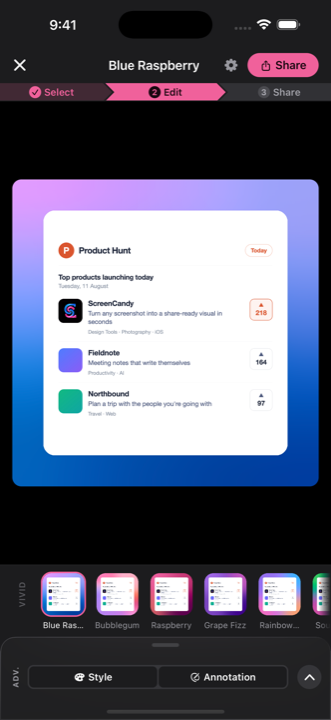
Gradient
24 hand-built mesh gradients across five families, plus 6 classics — 30 looks in all. Every one renders on your own screenshot for free.
A raw screenshot is a rectangle of someone else's interface. A background, rounded corners and a soft shadow turn it into something that looks deliberate. ScreenCandy does that where the screenshot already is.
Free on the App Store and Google Play.
24 hand-built mesh gradients across five families, plus 6 classics — 30 looks in all. Every one renders on your own screenshot for free.
A flat colour behind the card — white, light grey, graphite, black, raspberry, blue or green. The right answer when the screenshot is busy, or when the ground has to stay quiet.
The screenshot itself, enlarged and blurred behind itself, with its own radius and saturation. The colours always match, because they came from the same image.
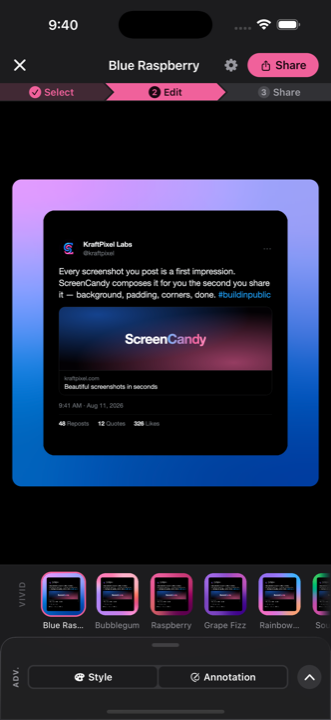
Any image from your library as the ground — a wallpaper, a brand texture, a product shot. Pan and scale it behind the screenshot until it sits right.
No ground at all. Export a PNG with real alpha and drop the composed card straight onto a slide, a doc, or a dark site.
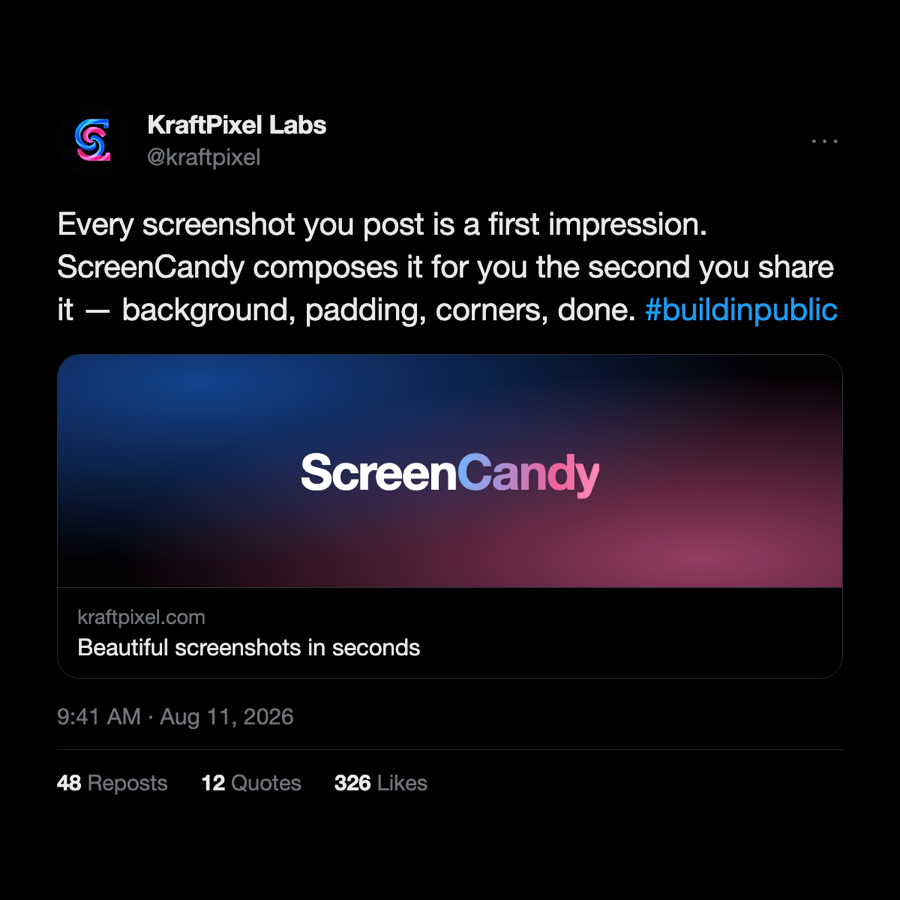
No fill and no shadow — the screenshot, untreated. For when you want the ratio, the crop and the markup but nothing decorative around them.
Each one is a real mesh, not a two-stop ramp: a 9 × 9 colour grid that bends light across the canvas, so the ground stays interesting behind a flat white app screenshot. Six classics sit alongside them, for 30 looks in total.
Pick the ground, then pick the canvas. Nine aspect ratios plus named sizes, and the composition re-fits rather than being cropped.
Preview and export render from one Skia scene, so the gradient in the file is the gradient you picked — at 1x, 2x or a custom scale.
If the screenshot is already on a laptop, a browser tool will put a gradient behind it in about ten seconds and cost nothing. There is no point pretending otherwise. The catch is that it is a web tool: the image is uploaded to someone else's server to be composed.
Phone screenshots are the ones that never get tidied up, because tidying them up means emailing yourself a file first. Here it is: tap Share, tap ScreenCandy, and it opens already composed — on-device, with no account and no upload.

All 30 looks render on your own screenshot for free. Free on iOS and Android.
Get ScreenCandy